
Loading...
January 6, 2026

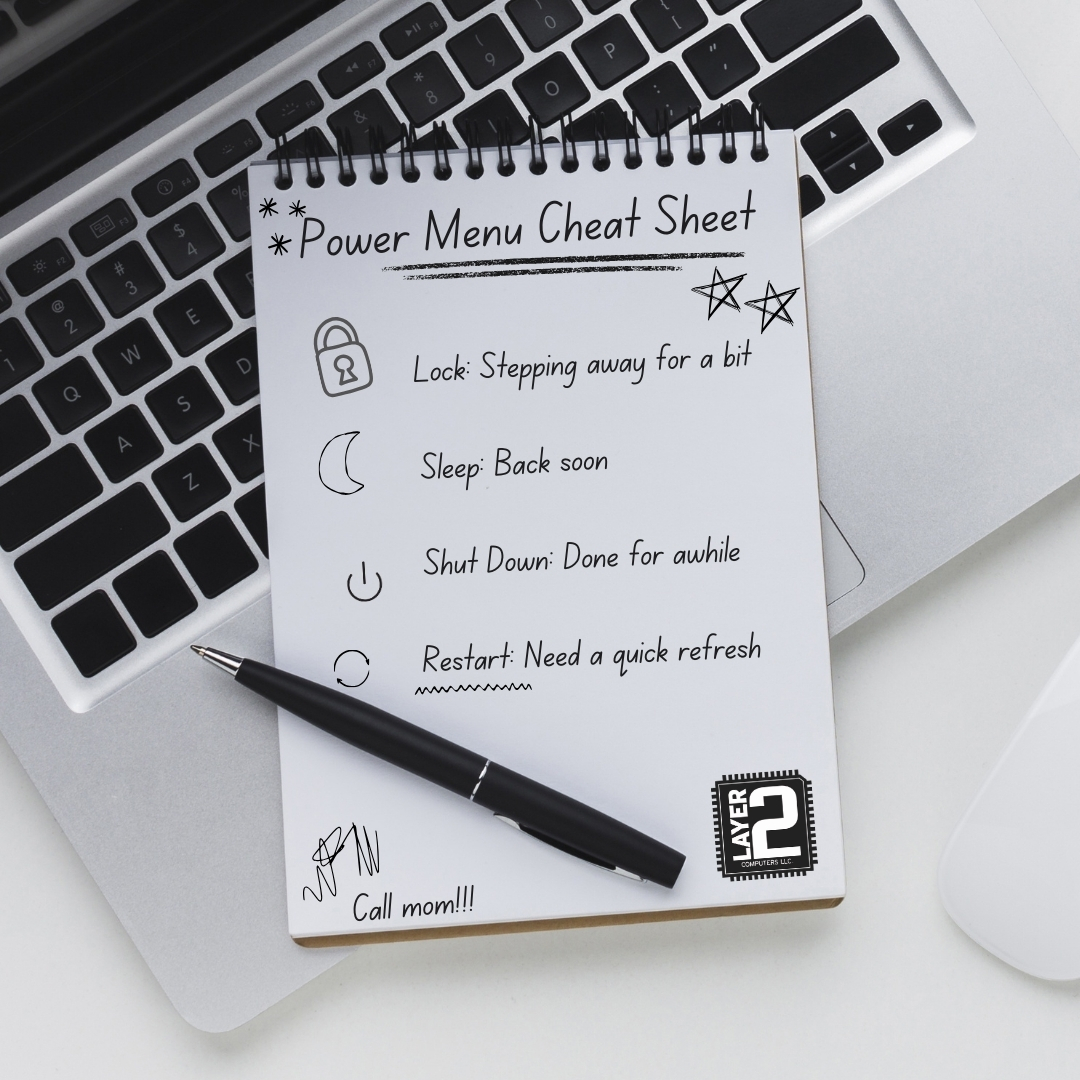
Sometimes the best IT wins are the small ones.
A client reached out after getting a new computer and asked a question that a lot of people wonder but don’t always ask out loud: “What do those Power options actually mean?”
So if you’ve got a new computer and you’re staring at that Power menu like “okay but which one do I click,” this is for you too!
Lock
Keeps everything running, but locks your screen so nobody can use your computer while you’re away.
To get back in, you’ll enter your password or PIN. (See a little lower if you need help setting this up!)
Sleep
Saves what you’re working on and puts the computer in a low-power mode. The screen turns off, but it wakes right back up where you left off when you move the mouse or tap a key.
Great for short breaks.
Shut Down
Closes everything and fully turns off the computer.
Best if you’re done using your computer for a while.
Restart
Turns the computer off and back on again.
Helpful after updates, or when something is acting weird and needs a quick refresh.
Lock is only useful if you’ve set up a password or PIN. If your computer doesn’t have one yet, Lock won’t really protect anything.
Go to: Start → Settings → Accounts → Sign-in options → Password → Add
Then follow the prompts.
Protected glow: unlocked.
If you’d rather not mess with it, no problem. Give us a call and one of our techs can connect remotely and help you out with this and any other set up related issues you may have!


